AuctioneerTech featured in January edition of Auctioneer magazine
In our minds, one of the best of the many benefits of being a member of the National Auctioneers Association is the Auctioneer magazine, a monthly periodical that is filled with information about auctions and auctioneers. Articles from NAA officers keep members briefed on the association. Articles from guest writers and other regular columns keep members informed about the industry.
Pages 26 and 27 of the January 2009 issue feature an article about AuctioneerTech and this author written by Hannes Combest, NAA Chief Executive Officer. If you’re a member, don’t forget that you can login to the members section of auctioneers.org to view the magazine even if you haven’t yet received yours in the mail.
We start the new year with an obituary for eBay Live Auctions, not to be confused with eBay Live!, the eBay convention for buyers and sellers held regularly in cities around the country. As of the first of the year, the website ebayliveauctions.com now redirects to www.ebay.com.
eBay Live Auctions was the division of eBay that allowed live auctions to take some advantage of eBay’s enormous bidder pool. Through the use of authorized providers such as iCollector and Live Auctioneers, auctioneers could post inventories and accept real-time Internet bidding like many other providers, but with the help of eBay’s bidding community which is still very large.
The downsides to eBay Live Auctions were many. eBay treated it like an unwanted stepchild by not allowing the items to be found by searches using the default search bar on eBay’s home page. The link to get to the live auctions always seemed buried and hard to access. The providers charged a percentage of each item sold to an Internet buyer in addition to a hefty setup fee per event.
Still, other Internet bidding providers charge a percentage of each item sold and eBay’s huge community still provided thousands of eyes on the live auction listings. The biggest problem was that eBay’s buyers are not auction buyers. While they may be much more familiar with Internet transactions than Joe Allbox, they balk at terms such as as is and buyer’s premium and simply don’t understand that there should be bigger punishments to not completing transactions than negative feedback. Unfortunately, eBay’s unwillingness to disclose personal information, to say nothing of credit card information, to the auctioneers it was attempting to serve made it very difficult to ensure buyer performance for transactions with eBay’s customers.
All in all, the death of eBay Live Auctions will be good for the auction industry and eBay. eBay has been good for auctions, but eBay Live Auctions has blurred the lines between eBay’s style of auctions and the methods of Internet auctions practiced by auctioneers, causing bidders to not understand how real auctions work. As eBay rearranges its deck chairs after hitting the iceberg, eBay Live Auctions is one of many logical cost-cutting culls.
As for those companies who had business models built around eBay Live Auctions, it seems that they will continue to operate by attempting to build their own buyer base, a task that is not hard as their auctioneer-clients will advertise their portals while advertising their events.
Did you use eBay Live Auctions or one of the providers associated with the service? What are your plans? Will you continue with the provider or switch to a different solution?
Filed under
announcements,
community,
services by Aaron Traffas on 3 January 2009.
1 comment.
Tagged with
as is,
buyer's premium,
Credit card,
eBay,
eBay Live Auctions,
iCollector,
Internet bidding,
Live Auctioneers,
Negative feedback
It’s time for a little year-end housekeeping. With all of the top lists being created regarding the previous year, we couldn’t help but join in with a top list and a review of everything we’ve done so far. Here are our top six posts that we like.

- ATS designation - Auction Technology Specialist for auctioneers
- Today is a special day, vote for science
- Example RFP for new or redesigned website
- Accessible websites, more RFP ideas
- Purple Wave unveils grouped extension system for equipment auction
- Never use letters in advertised phone numbers

Aaron Traffas, CAI, ATS, CES is the author of AuctioneerTech
Here is our year in review, with a summary for each month. Don’t forget that you can always go straight to the posts for any given month using the links in the side bar on the right.
July
While the site launched in September, we cheated a little bit by scraping from other sources and populating it with a few related posts made previously on the NAA discussion forum as well as aarontraffas.com. We covered the NAA forum, Ubuntu Linux, and PDF tools, as well as mentioned hosted exchange, some other email clients and Google Apps. We touched on how Internet Explorer is a great browser so long as it’s fully patched. We talked about how while Windows Vista is slower than XP in speed, it’s superior to XP in many ways that count such as security, stability and forward compatibility.
August
We only scraped one post for August, and that was a short post about Flash and website usability. We dove much deeper into the topic with a series of posts in November.
September
The site launched on September 8, but September 2 featured a scraped article from aarontraffas.com about the release of Google Chrome, which held our attention for a few weeks until we went back to Firefox and Opera. We covered OpenOffice 3, noted that eBay is declining and only accepting Paypal, and had the first article about auctioneers. We discussed advertising for Internet only auctions and Apple’s new iPods, as well as evangelized about Secunia, Twitter, and Skyfire. We migrated from one laptop to another and showed how MozBackup and Belarc Advisor help make the process easier. We examined how phpList makes bulk email list management easier for auctioneers and we also had two posts about PDFs showing that you should use them sparingly and never use Adobe products when the alternatives are faster and cheaper.
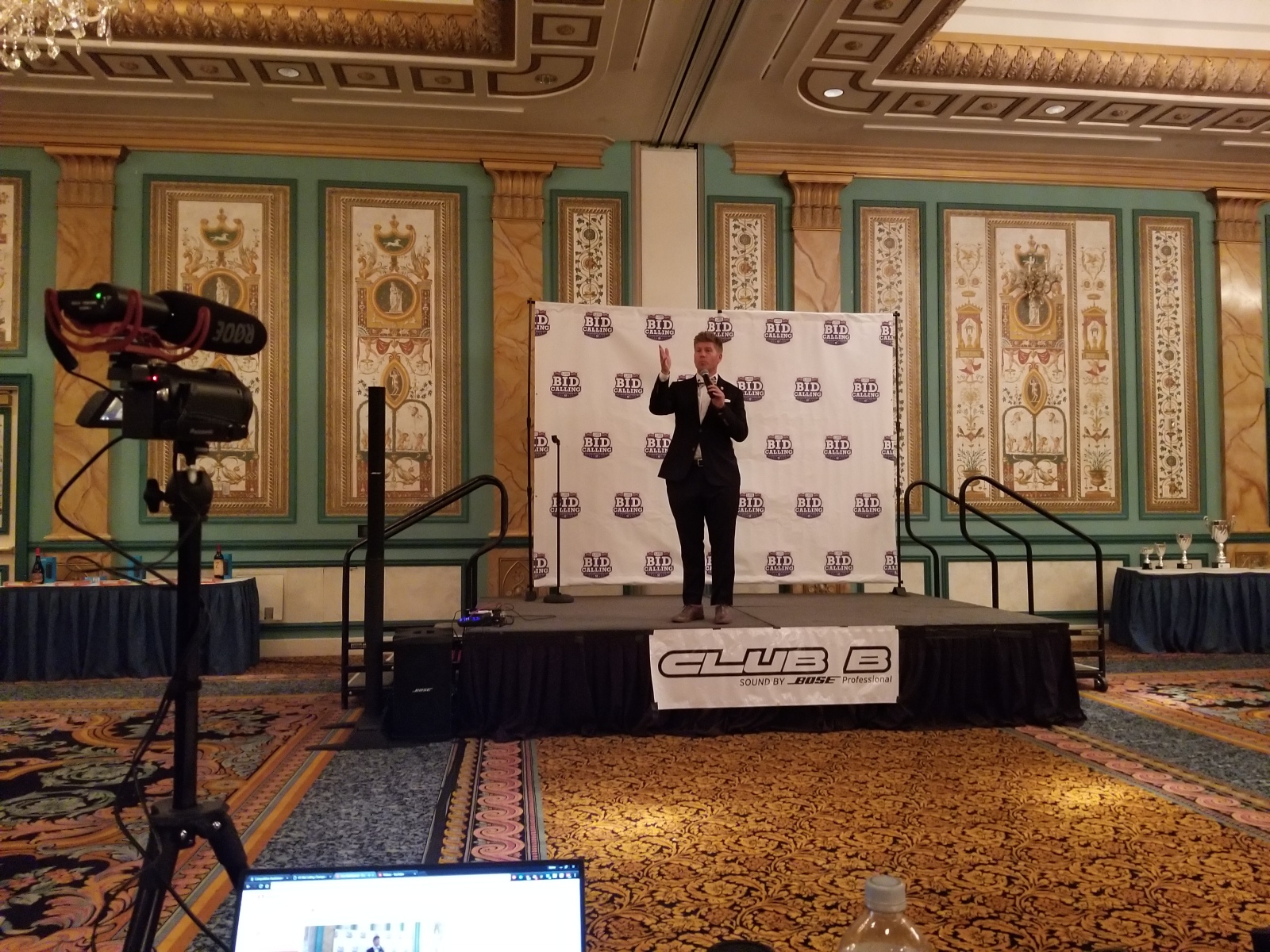
This author took part in the Kansas Auctioneer Association bid call competition at the Kansas State Fair and has a live blog from the experience as well as a video to prove it. The experience was the catalyst for a position post on why state associations should use computerized tabulation for bid call competitions.
September saw the first five Auction Podcasts as well as the listing of the series within the podcast section of iTunes. The episodes were based generally on content from existing posts on AuctioneerTech. There was the primier on advertising Internet only auctions, a tech roundup covering several shorter posts, and podcasts covering PDF and phpList.

Robert Mayo. CAI, CAGA, AARE was featured on Auction Podcast Episode 7
October
The first post in October was one of celebration after finally figuring out how to prevent the nasty screen flickering found when using an external monitor on some laptops loaded with Vista. While we were talking about multiple monitors, we showed how Synergy can be used to share your mouse between multiple computers, not just multiple screens. We noted and showed examples of how auctioneers are using Wordpress for auction sites and described in depth the new Auction Technology Specialist designation offered by the NAA.
A new resource list was created that is an ongoing project listing all companies and providers involved with auction clerking, cashiering and Internet bidding. We showed how OpenDNS makes the web faster and safer, and how Google Adwords allows auctioneers to find a very targeted audience in a very short amount of time. We announced a critical security update for Windows and explained the importance of keeping your data encrypted while showing how Truecrypt makes it crazy-simple to do. For collaboration needs, we talked about how UStream makes it easy for auctioneers to broadcast video of events for free and how ShowMyPC and LogMeIn make Internet meetings free and much more simple than other expensive solutions such as GoToMeeting or WebEx. For those auctioneers who want to be a little geeky, we gave away the secret to a free education at W3 Schools.

Brandon Harker with Auction Flex was featured on Auction Podcast Episode 9
October’s podcasts covered Internet bidding as well as Adwords and OpenDNS. October found the first podcast guests in interviews with Robert Mayo of Mayo Auction and Realty and Brandon Harker of Sebae Data Solutions, makers of Auction Flex.
November
In November, we caught election fever and wrote about the importance of science in society and of ensuring that our elected officials understand the importance of science and technology. We discussed how hosted Exchange lets companies share Outlook contacts and calendars properly without the headache of managing an Exchange server.
We got geeky with files and talked about how 7-zip is the best compression utility and how a Drobo will let you sleep at night. We broke a story about AVG flagging one of the files in Adobe Flash as a virus, and we’re still getting several visits each day to the website from users searching for information about flashutil10a.exe.
Toward the end of November,we launched a series of discussions on what could go in an RFP for an auctioneer looking to build a new or redesign an existing website. Thanks to our friend Rob Spectre for posting some additional topics. We repeated that it was easy to use Google Docs to build simple web forms and wondered aloud if having auctions on Black Friday was a good idea.

Darron Meares, CAI, MBA, CPPA was featured on Auction Podcast Episode 10
November saw the Auction Podcast shift from being rehashed content on a separate page to new content included on the main page. November’s podcasts included an interview with Darron Meares of Meares Auction Group, a show on how open source software makes life easier and reduces expenses on software, and a controversial episode explaining that in many cases if you’re shipping auction items you’ve failed in marketing.
December
We continued our discussion about RFP ideas with some notes and comments about accessible websites. We looked from a marketing perspective at the importance of never using letters in advertised phone numbers, making sure an auction website had the upcoming auction calendar front and center with thumbnails, and ensuring that video is distributed properly. We also emphasized how important it is to be careful when browsing, and showed that Firefox users can browse freely and safely when running NoScript.
There were some interesting ideas covered such as Mahalo’s introduction of human-powered answers, as well as a New York auctioneer offering to negate the buyer’s premium in exchange for prepaid transactions. The National Auctioneers Association released the NAA Newsroom and Auction Answers and some dude royally ruined an auction by the Bureau of Land Management. Purple Wave released a new twist on the Internet only bidding model, a grouped extension feature that extends the entire group if a bid is received in the last few minutes.
The final Auction Podcast of 2008 covered dual agency with regards to absentee bid implementation. The final posts of the year included articles on letting your computer help science when you’re not using it, using Foxit Reader’s new typewriter tool to write on PDFs for free, and using Mint to automatically track your finances. We thanked you for racking up over 1000 listens to the Auction Podcast and encouraged you to go vote for the coolest tech of the year.
Going forward
It’s been a great four months; thanks to everyone for the kind words. Thanks to all of you who have left comments or feedback in response to articles or other comments, your participation is immensely valuable. Thanks to the guests who have been featured in podcasts and thanks to the guests who have already committed to podcast appearances in 2009. Have a safe and happy New Year’s Eve. We’ll see you next year.
Filed under
announcements,
community by Aaron Traffas on 31 December 2008.
1 comment.
Tagged with
Apple,
ATS,
Auction Flex,
auction podcast,
AVG,
Brandon Harker,
Darron Meares,
eBay,
firefox,
Flash,
google,
Google Docs,
OpenDNS,
PayPal,
Rob Spectre,
Robert Mayo,
Skyfire,
TrueCrypt,
Ustream,
W3 Schools,
Wordpress
No, we’re not talking about breakfast cereal. The Crunchies 2008 is a set of awards given to the top technology companies, products and ideas in a given year. The awards are sponsored by GigaOm, VentureBeat, Silicon Alley Insider, and TechCrunch. Last years winners included Facebook, Digg, Tesla Motors, Hulu and the iPhone. What will the list of winners for 2008 look like? Vote now to have an influence. Voting ends January 5. Even if you don’t vote, it’s worth it to look at the nominees now and to revisit the site after January 9 to see the winners.
Filed under
gadgets,
services,
software by Aaron Traffas on 30 December 2008.
Leave a comment.
Tagged with
Facebook,
GigaOm,
Handhelds,
Hulu,
iphone,
Silicon Alley Insider,
Smartphones,
TechCrunch,
Tesla Motors,
VentureBeat
We’re QuickBooks fans. That is to say once a year, usually after the first or second extension on taxes, we spend a day or two entering all the checks and deposits from the entire previous year. About six months ago, we stumbled onto a service called Mint. Having used it religiously since that time, we can safely say that Mint is perhaps the coolest thing to happen to finance since QuickBooks ended double-entry accounting for consumers.
Mint was the winner of last year’s TechCrunch 40, a contest among startup technology companies. The concept is that you provide it with the credentials to login to your checking accounts, credit cards, Paypal - even student loans and investments. It then aggregates all the information together and provides you with your spending habits and ways to save money. They’re adding more banks all the time, and they’ve just released an iPhone application that makes it easy to check all your balances when you’re on the go. You can even get account balances by sending an SMS message of “bal” or “balance” to 696468 to get a text message back with the current balance as of the last time Mint polled your accounts.
Mint makes money by suggesting ways to save you money. If there is a credit card that offers a better rate based on your spending habits, Mint will suggest that card to you and show you how much money you could save over the course of a year by using that card instead of your current card.
The way Mint uses your credentials will certainly make the more privacy-conscious among us think twice before using it. We here at AuctioneerTech can say with experience, however, that the benefits of using it vastly outweigh the alternative of checking each of many different account balances and manually doing the research to see which financial deals are the best.
Do you use Mint? Do you use a Mint alternative such as Yodlee, Wesabe or Quicken Online? Let us know in the comments.
Now that PDF is an ISO standard and no longer an Adobe product, it has value for some types of content distribution. We’ve mentioned the benefits of using Foxit Reader for all your PDF viewing needs in two articles and a podcast. Foxit is faster than Adobe Reader and takes up much less disk space. Our favorite PDF reader received an upgrade in November that makes the decision between it and other free PDF readers simple. Unlike Adobe Reader, Free Foxit Reader 3.0 for Windows now lets you type on PDFs and save the result.
Previous versions of Foxit only supplied the holy-grail-of-all-PDF-tools typewriter functionality in the Pro Pack, which is a $39 purchase. Now, with version 3.0, the typewriter is available so long as you install either the Foxit Toolbar or an eBay icon. While toolbars are unequivocally bad, and icons to websites aren’t on the positive side of useful, satisfying either requirement is definately worth the use of the typewriter within the best PDF reader on the market. If you have a problem with the toolbar or the icon, you can simply elect to not display it after its installed.
Active Adobe PDF forms suck. They’re difficult to make, and getting good data in a good format is hit or miss. With Foxit Reader, now any PDF befomes a form. Simply view the PDF, select the typewriter tool from the toolbar, click on the page and start typing. If the text is too big or small, simply adjust it using the font toolbar, similar to that in OpenOffice, Word or any other familiar desktop application. When you’re done, simply save the file as a PDF and it’s ready to print or send.
If you don’t have Foxit Reader, shame on you. Here’s a link to the download page for the latest version. Click the link on the left and run it to begin the installation.

Auction Podcast
The Auction Podcast has reached its first milestone. We’ve recently rocketed past 1000 listens to the series. Indeed, according to Wordpress plugin Podpress, each of the first five episodes has over 100 listens.
When we first started the podcast, the goal was a weekly release. We have some exciting plans for the podcast series in 2009, but in order to focus on the quality of episodes and guests we’re going to step back to a monthly or semi-monthly release schedule.
We’d like to continue to cater this podcast to the listeners. If you have suggestions for topics or guests, or if you are interested in being a guest, please let us know by visiting the feedback page and leaving us a message.
In this time of giving and over the course of the next few weeks that begins the new year, many of us may be looking for was to give to good causes. As many of us may have difficulties giving financially during these times, we look to alternative ways to help others. If you’re a fan of science like we are here at AuctioneerTech, you’ll appreciate the Berkeley Open Infrastructure for Network Computing, or BOINC.
We were first introduced to BOINC when we installed SETI@home on several computers at home and at the office. It not only allows an idle computer to aid in the search for extraterrestrial intelligence, it also presents a pretty darned cool screen saver of the data as it’s being analyzed.
The underlying concept of BOINC is a kind of distributed computing known as volunteer computing. In volunteer computing, volunteers donate extra computer resources - essentially the time when a computer isn’t being used such as at night or while it’s otherwise idle - to a project or cause. It’s different from grid computing in that it’s not managed and there isn’t any commitment given by the computer owner.
BOINC allows the volunteer to select among a number of different research projects, categorized into earth sciences; multiple applications; mathematics and strategy games; astronomy / physics / chemistry; and biology and medicine. It’s possible to divide the time you donate from your computer to be spent on multiple projects if you can’t decide between Proteins@home and Einstein@home.
BOINC is simple to install and takes no system resources until it begins to run, which only happens when you’re not using your computer. BOINC clients run on Windows, Mac and Linux. As of December 17, some select BOINC projects support using specific graphics cards in addition to CPU power. If your computer has a recent NVIDIA GPU, you can compute 2X to 10X faster than with your CPU alone.
It’s true that it’s much better for the environment and your electric bill if you turn off your computer (or hibernate it) should you be leaving it for more than 15 or 20 minutes. However, BOINC projects can still be useful should the be run for 5 or 10 minutes frequently throughout the day.
Any time you see a screen saver, think to yourself how much more valuable it would be were that computer connected to BOINC and helping science. Also, if you for some expensive reason don’t turn off your computer at night, at least put it to use for a good cause.

Example of extended bidding caused by a bid submission in the last few minutes of an Internet only auction
We discussed back in September how Internet bidding has been referred to as eBay style or static bidding, and we’ve explained why those are bad descriptions for this type of bidding. Features like automatic extension and staggered ending make most modern Internet only auctions nothing like eBay and they certainly are exciting and dynamic enough to not come close to deserving to be called static. Now, a new twist has been released by Purple Wave, an auctioneer based in Manhattan, Kansas. This twist is grouped extension. Here’s the explanation from Purple Wave’s website.
Purple Wave is pleased to announce a new feature called grouped extension has been added to its industry-leading Internet auction platform….Occasionally, Purple Wave will group together similar assets in an Internet only auction and place them in a bidding extension group. Any bid within the last few minutes that causes an automatic extension of bidding on any one of the assets in that group will now automatically extend the bidding on ALL assets in that group. When no more bidding has occurred on any assets in a group for the specified time, then bidding on all assets in that group will close simultaneously.
“We continually look for ways to try to translate traditional auction concepts into the Internet auction world,” said Jerrod Westfahl, Purple Wave’s Executive Vice President of Business Affairs. “Our grouped extension feature does just that. It’s really all about creating aggressive bidding activity without creating unnecessary risk to the bidders. This feature is a win for both buyers and sellers. Buyers don’t miss out on what might be an otherwise good value. It allows auctioneers to add value for sellers by exercising their professional judgment in deciding how to create the groups.”
This new feature allows the Internet only auction to more closely replicate a choice sale at a live auction. When items are sold as a choice at a traditional auction, the winning bidder gets to select among a group of items at the winning bid price, taking one or multiple items with each item costing the high bid price. The auctioneer then sells the remaining items to other bidders, usually in the same way. While it’s true that some real-time Internet bidding platforms have options to facilitate choice sales, we don’t know of any companies outside of Purple Wave that yet facilitate choice bidding for Internet only events.

grouped extension example - the group association is listed at the end of the description
Take for example the equipment auction for which Purple Wave will be unveiling the new grouped extension feature. There are three 2004 John Deere combines. Let’s suppose for this example that there may be one that is more desirable than the others. Let’s take the example of a traditional Internet only auction where the one with the best current bid is listed first and the other two are listed directly after it in descending order of current bid. As the bidding begins to end, more bidders are bidding on the first item, the one for this example we’ve assumed is more desirable. This bidding activity causes the item to extend for a greater period of time than the two items following it. When the second-highest bidder realizes that he cannot afford to bid again on the first item and decides to try to bid on one of the other similar items, he cannot place more bids because the other items have closed at lower prices than he was willing to pay. Since he wasn’t willing to pay those prices on the other items until he was absolutely sure he wasn’t able to purchase the first item, he was unable to purchase any combine at the auction.
With grouped extension, any item in a group receiving a bid in the last few minutes will keep all of the items in the group from closing for a period of time. This new method solves the problem above by allowing the second-highest bidder on the first item to bid strongly on that item while knowing that he has the option to bid on either of the other two items should the price on his preferred item exceed that amount which he is willing to pay.
This grouped extension system is an interesting twist on the way items are offered at Internet only auctions. Do you know of another company who offers this kind of service? What are some other twists on Internet only auctions that haven’t yet been discussed here? Let us know in the comments.
As a matter of disclosure, Purple Wave is this author’s employer and this author was directly involved in the development of this new tool.
Red Green and Blue recently posted an article about an activist who wrecked havoc at an auction by the Bureau of Land Management. The bidder essentially ran up the price on several tracts to knock out other bidders, while having no intent to actually purchase the properties himself.
We all have difficulties with bidding mistakes from bidders who are perhaps not well-informed as to the terms of the sale, or disruptions from bidders who are unhappy about the way an auction is being conducted. Politics aside, how would you deal with this type of economic terrorism from activists during an auction?
Filed under
community by Aaron Traffas on 23 December 2008.
1 comment.