
Windows has a very useful tool to monitor the programs and services that are utilizing system resources. In Windows Vista, this tool is the Reliability and Performance Monitor, shown here. In Windows 7, the tool has been upgraded and is called Windows Resource Monitor.
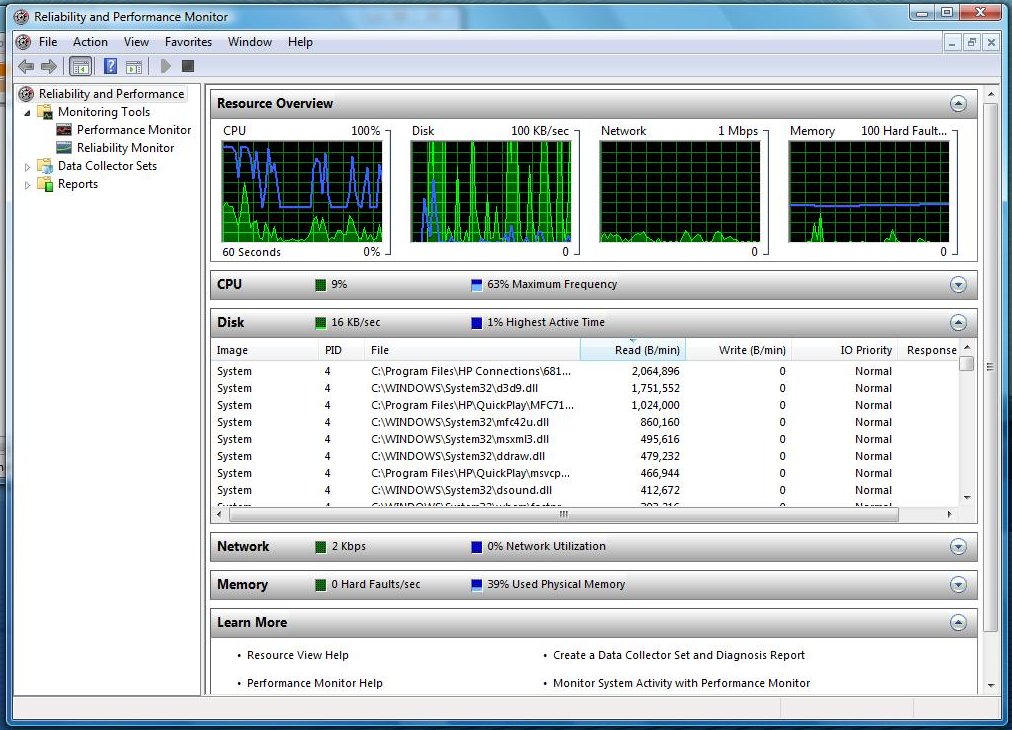
This tool lists four resources types of system resources – processor, hard drive, network and memory – and allows you to expand the categories to show the programs and services that are currently using each resource. More than that, each program is listed and sortable by related metrics for that category, like average CPU and threads in the CPU category, disk read bytes per minute and response time in the disk category.
It’s really easy to run. Here’s how.
Windows Vista
- Press the Windows Key + R on the keyboard (faster) or click Start and then click Run to bring up the run dialog box.
- Type perfmon and press enter or click OK
Windows 7
- Press the Windows Key + R on the keyboard (faster) or click Start and then click Run to bring up the run dialog box.
- Type resmon and press enter or click OK
This tool is very valuable when you’re trying to understand what program is making your computer or your network run slowly. It’s much more detailed than Windows Task Manager, which shows a mere fraction of the information available in Resource Monitor or Reliability and Performance Monitor.